
How to Reduce a PCAP File for Analysis (editcap & tshark)
Published: June 19, 2026
The capture that holds the answer is often the one you cannot work with. A slow file transfer, a stalling upload, a remote session that crawls — leave a packet capture running while it happens and you can be staring at hundreds of megabytes within a minute or two. Wireshark grinds, and most analysis tools (ours included, at 50 MB) will not accept the file. The good news: for a performance or protocol problem you almost never need the whole thing. The signal lives in the packet headers — sequence numbers, ACKs, window sizes, timestamps, flags — and those are a tiny fraction of the bytes. Here is how to cut a fat capture down to the packets that matter with two tools that already ship with Wireshark, editcap and tshark — and still get the exact same diagnosis.
Why you can throw most of the file away
A capture of a file transfer is mostly the file. The bytes that make it huge are the payload — the document being copied, the disk image being pulled, the backup being streamed. But the question “why is this slow?” is not answered by the payload. It is answered by the TCP control information wrapped around it: retransmissions, duplicate ACKs, zero-window stalls, round-trip time, resets. That metadata sits in the first few dozen bytes of every packet, and it is all you need.
So there are two levers. You can keep every packet and throw away the payload (a snapshot-length trim), or you can keep full packets but only for the one conversation or time window that matters. Often the smallest, cleanest file comes from doing both.
Lever 1 — strip the payload with editcap -s
This is the fastest win and the one to reach for first. editcap -s sets a snapshot length — a hard cap on how many bytes of each packet to keep. Cap it just past the headers and you keep every packet, every timestamp, and every retransmission while discarding the payload that makes the file enormous.
editcap -s 128 big.pcap trimmed.pcap128 bytes leaves room for Ethernet, IP (with options), and TCP (with options) plus a few bytes beyond; drop to 96 for pure TCP-performance work. On a transfer-heavy capture this routinely removes 80–95% of the size — a 130 MB file becomes a few megabytes — with zero loss of timing or retransmission data.
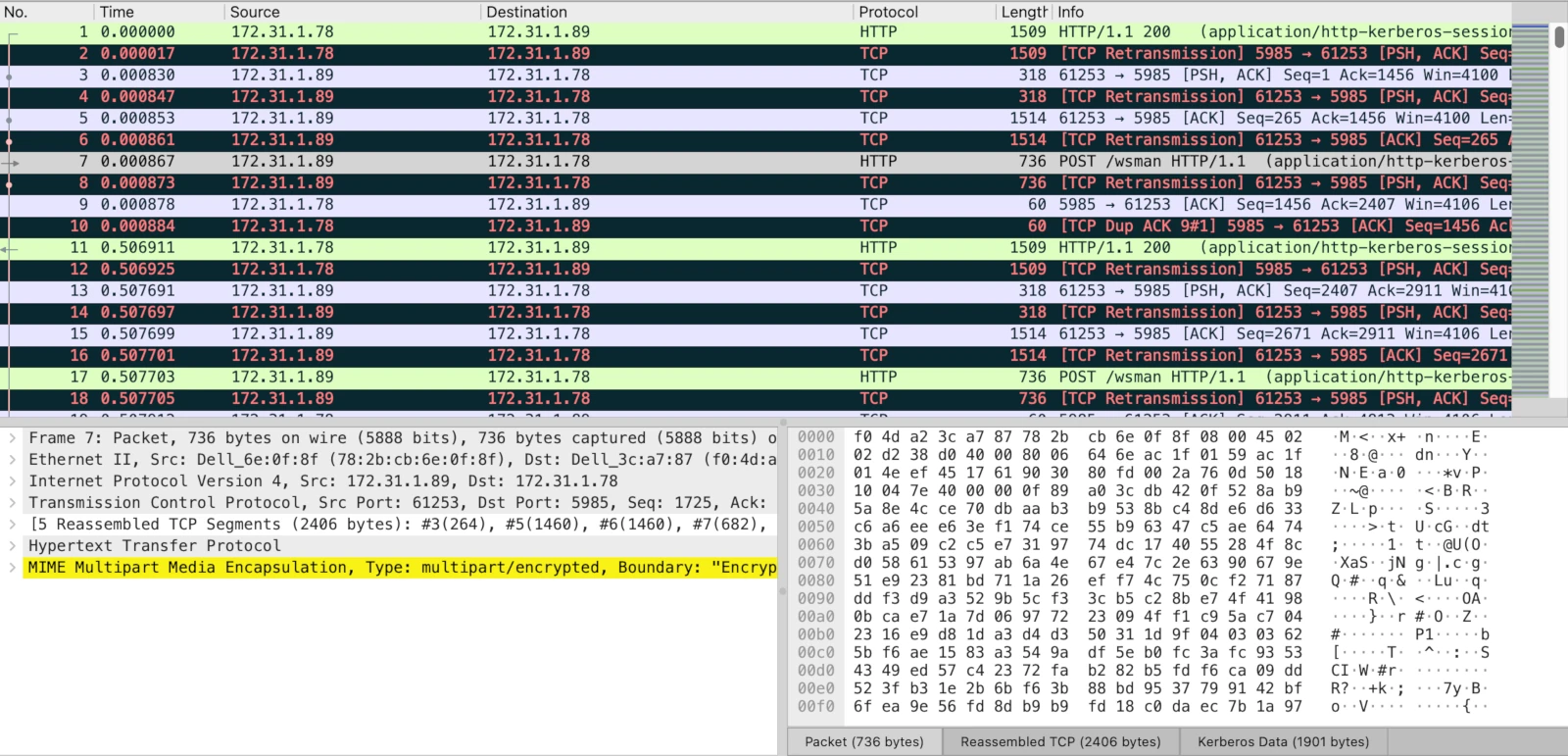
The original capture: full-size frames, every payload byte still on the wire.
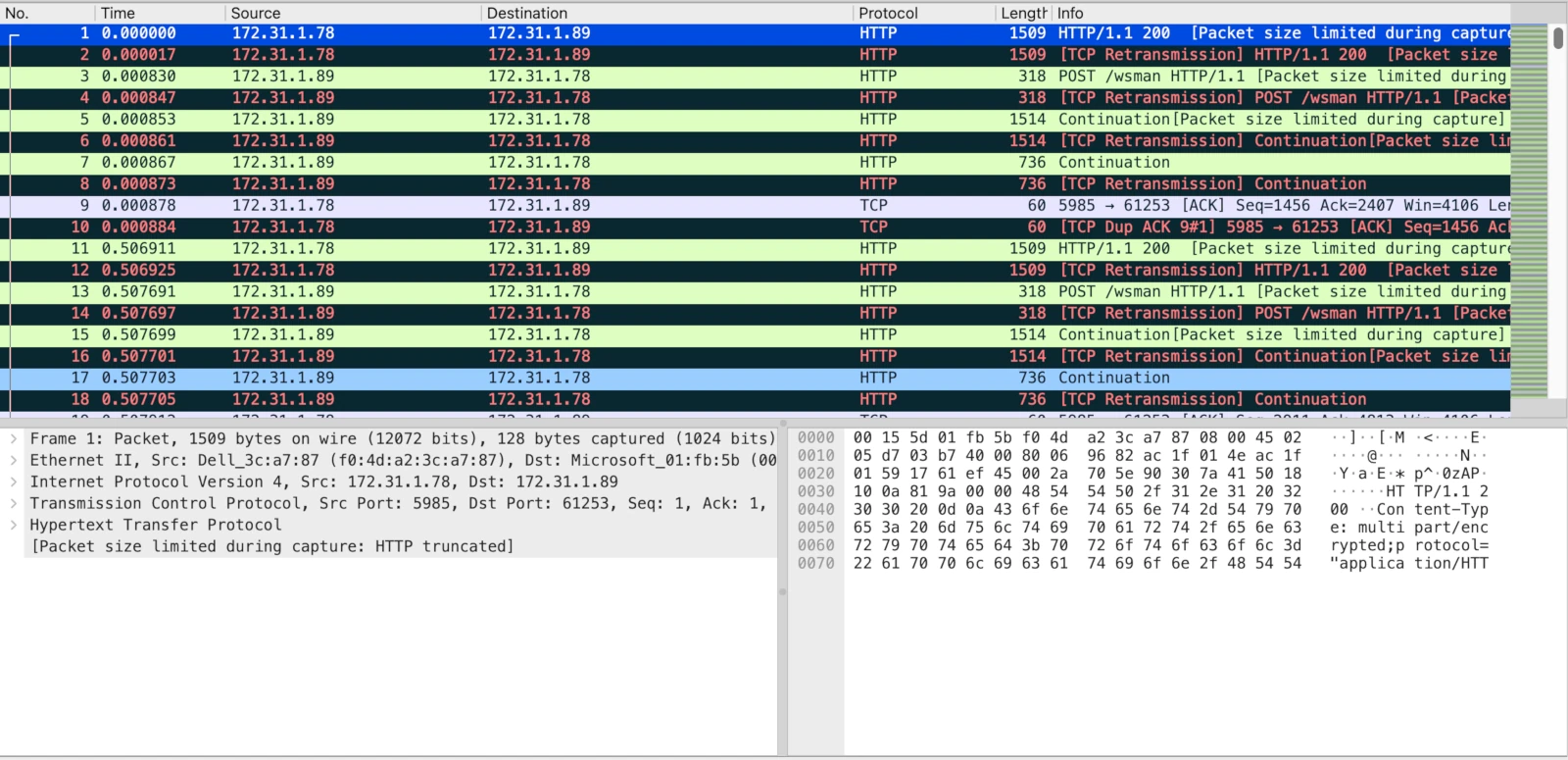
After editcap -s 128. Wireshark notes [Packet size limited during capture] — expected and harmless: the sequence numbers, ACKs, window sizes, and retransmissions are all still there.
Wireshark flagging frames as “truncated” is not an error — it is confirmation the trim worked. Check the new size any time with capinfos trimmed.pcap.
Lever 2 — keep only the conversation that matters
If you know the two endpoints, slice the capture down to just their traffic with a display filter and tshark:
tshark -r big.pcap -Y "ip.addr==172.31.1.78 && ip.addr==172.31.1.89" -w trimmed.pcap
Add && tcp.port==5985 to narrow to a single service. To cut by time instead — you usually know roughly when it stalled — editcap takes a window:
editcap -A "2026-06-19 14:00:00" -B "2026-06-19 14:02:00" big.pcap trimmed.pcap
Or by packet range with editcap -r big.pcap trimmed.pcap 1-200000. For the smallest possible file, chain the two levers: isolate the conversation first, then strip its payloads.
The trimmed capture gives the same answer
Here is the whole point. We took the payload-stripped capture from Lever 1 — a slow WinRM (Windows Remote Management) session between a server on 172.31.1.78:5985 and a client on 172.31.1.89 — and dropped it into PcapAI in Troubleshooting mode. The TCP Health & Performance section names the problem on sight.
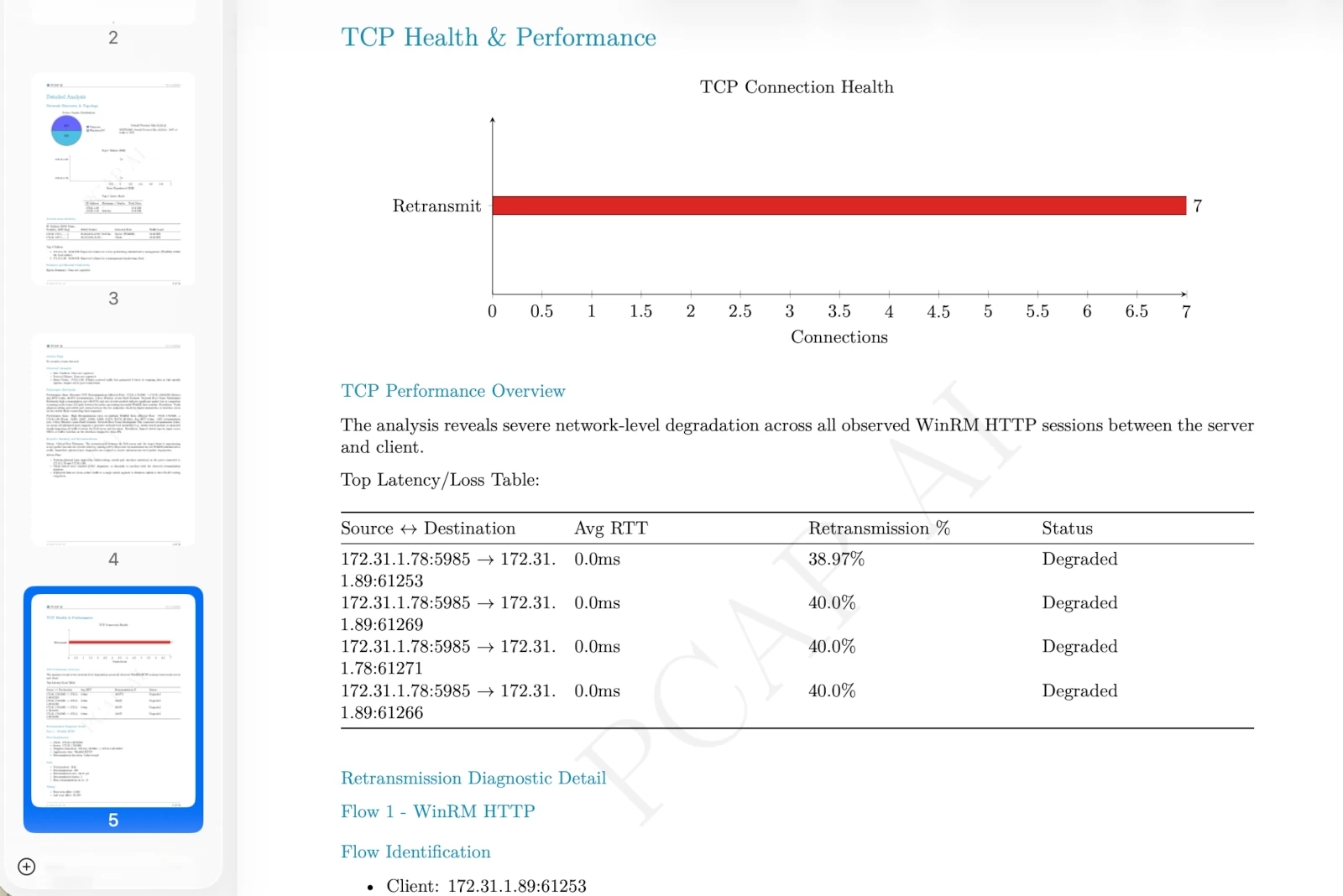
PcapAI’s TCP Health & Performance report on the trimmed capture: seven WinRM/HTTP connections, every one flagged Degraded, each running 39–40% TCP retransmission.
Seven connections, all Degraded, each retransmitting roughly 39–40% of its segments. That is the entire story: the transfer was not slow because of bandwidth or a busy server — close to half of every flow was being sent twice because the path was dropping packets. That is the fingerprint of a lossy link, a duplex mismatch, or an overloaded device in the middle, and the fix lives at the network layer, not in the application.
And every byte of that diagnosis came out of the headers. The snaplen-trimmed file produced the identical verdict the full-size original would have — in a capture small enough to upload in seconds. That is the deal trimming offers: throw away the bytes that cost you nothing to lose, keep the ones that answer the question.
Quick reference
- Strip payloads, keep all packets:
editcap -s 128 big.pcap trimmed.pcap— the first thing to try for any performance question. - Keep one conversation:
tshark -r big.pcap -Y "ip.addr==A && ip.addr==B" -w trimmed.pcap - Keep a time window:
editcap -A "start" -B "end" big.pcap trimmed.pcap - Split into fixed chunks:
editcap -c 100000 big.pcap chunk.pcap— writes one file per 100k packets. - Check the result:
capinfos trimmed.pcap
All of these ship with Wireshark on every platform, so there is nothing extra to install. Once the file is down to size, the same trimmed capture is what surfaces problems like TCP retransmission storms — in a fraction of the time the full file would take.
Frequently Asked Questions
Does stripping the payload lose diagnostic information?
For performance and protocol troubleshooting, no — retransmissions, RTT, window sizes, resets, and handshakes all live in the headers a snapshot-length trim keeps. The exception is when you specifically need application-layer content (a transferred file, an HTTP body, recovered cleartext credentials). In that case do not snaplen-trim; slice by conversation instead so those packets stay whole.
What snapshot length should I use?
96 bytes covers Ethernet, IP, and TCP headers for most traffic; 128 is a safe default that leaves room for VLAN tags and IP/TCP options. Going higher just keeps payload you probably do not need. If you are unsure, start at 128.
How do I install editcap and tshark?
Both are bundled with Wireshark on Windows, macOS, and Linux — if you have Wireshark, you already have them on the command line. On Linux they are also available as a standalone tshark / wireshark-common package.
My capture is still too big after trimming. Now what?
Combine the levers — isolate one conversation and then snaplen-trim it — or split the file into chunks with editcap -c and analyze the relevant chunk. PcapAI’s upload limit is 50 MB, and a snapshot-length trim alone gets the large majority of captures comfortably under it.
Got a Capture Too Big to Open?
Trim it with the commands above, then upload the result — PcapAI returns a TCP-health and MITRE-mapped report in minutes: retransmissions, latency, stalls, and threats flagged automatically.